Improve your browsing: more private, more secure
RequestPolicy is an extension for Mozilla browsers that improves the privacy and security of your browsing by giving you control over when cross-site requests are allowed by webpages you visit. It is the first comprehensive client-side protection against CSRF attacks and the first tool to enable the use of modern browsers without cross-site information leakage.
It is compatible with Firefox 3+, SeaMonkey 2.0, Flock 2.0, Songbird 1.0, and Fennec 1.0. It works wherever these browsers do (Linux, BSD, Mac, Windows, etc.).
Current release
The current release is 0.5.13. The current beta is 0.5.14b2. The current approved version on addons.mozilla.org is 0.5.12.
Get the 0.5.12 release from the Mozilla add-ons site.
Find a bug? Check the list of known bugs and let us know if you found a new one.Quick tutorial
After you install RequestPolicy (and restart your browser), you will be asked if you'd like to import some initial items into your whitelist. This is not necessary and you can skip this if you'd like. If you do choose to import these items, they will be added to your list of allowed cross-site requests. (You can always come back and do this later through the RequestPolicy Preferences window.)
With RequestPolicy now installed, you will see a new flag icon at the bottom-right of your browser (in the area called the status bar). This flag turns red when RequestPolicy has blocked requests from the current website you are viewing. (If you prefer using toolbar buttons rather than status bar icons, you can add the RequestPolicy flag to your toolbar. You can also access the same menu through the context menu -- the menu you get when right-clicking anywhere on a webpage.)
You'll notice on webpages you visit that blocked cross-site images are indicated with a red flag and border in the place of where the image would have been. Hovering your cursor over the blocked image will tell you which domain the blocked image was from.
Clicking on the RequestPolicy icon in the status bar brings up a menu of options. The menu looks like the image below.
The menu indicates destination domains from the current site that have either been blocked or allowed. Each of the destination domains listed have their own menus which give you options about which requests to allow.
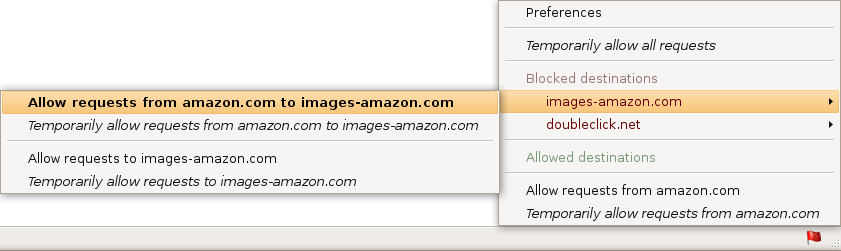
The options for any blocked destination domain include:
- Allow requests from [the current site] to [the other site]
This option will allow any requests from the site you are currently on to this one particular destination site. Other requests from the site you are currently on to other destination sites won't be allowed, and neither will requests from other sites you visit to that same destination site. - Allow requests to [the other site]
This option will allow any requests from any site you are on to this particular destination site.
Additionally, you always have the following option:
- Allow requests from [the current site]
This option will allow all requests from the site you are on to any other destination site.
If you select the "temporary" version of any of these options, then it will only stay in your whitelist until you restart your browser or revoke the permission (through the menu).
The menus for allowed destinations let you revoke whichever whitelist option that is causing requests to that destination to be allowed.